
Welcome to the Promostaff portal
As soon as we have your name and email address we will set you up in PARiM our scheduling APP.
So lets get started. You will receive an access code from the system administrator that will look like this
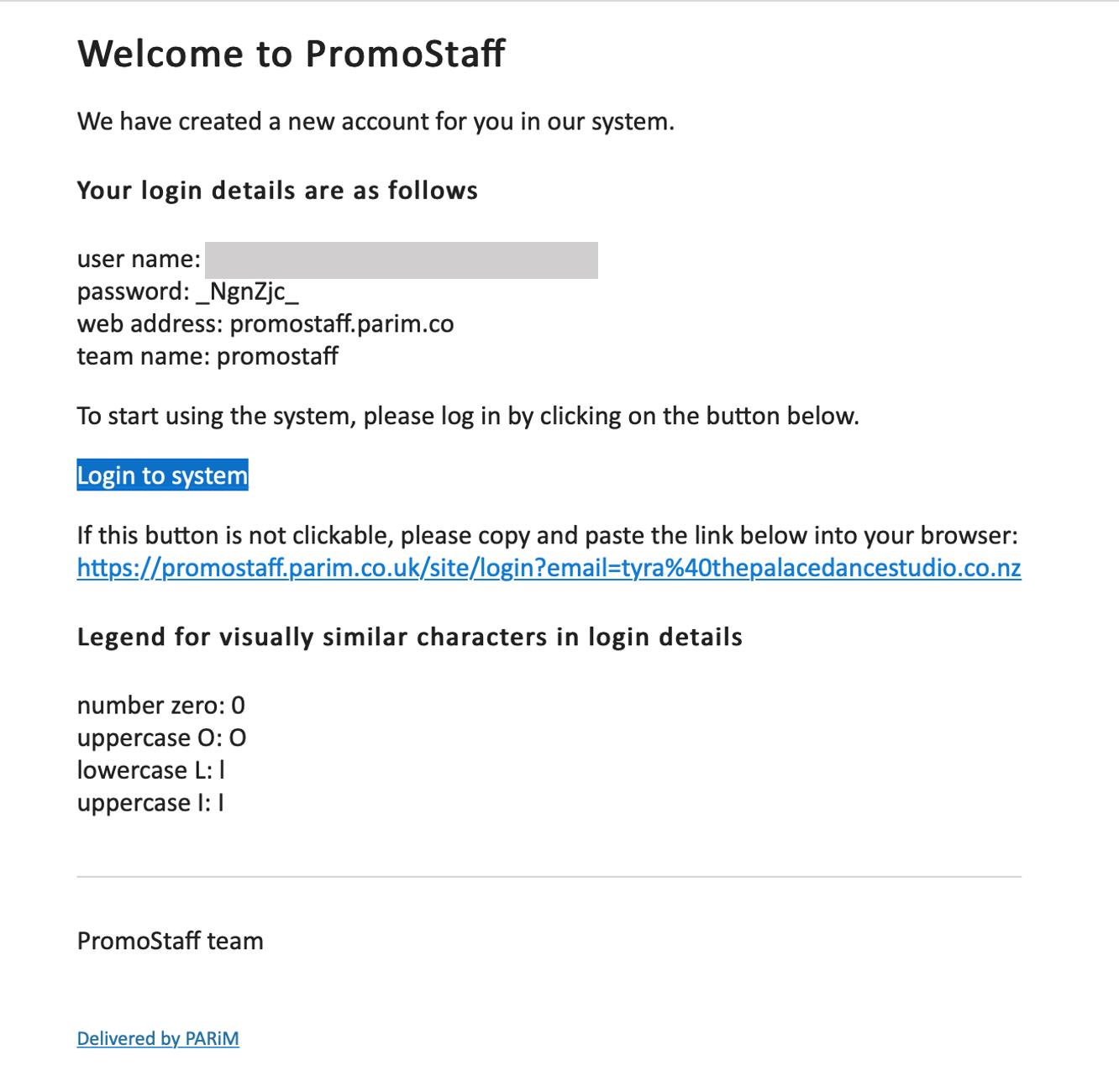
Click the login to system using your email and the code you are sent
Once in the system click on the profile tab in the top right corner and complete all your details.
Change your log in password while you are at so it is easy to recall for setting up the mobile APP
Follow the tutorial below to learn how to set up and operate the App.
Good luck and welcome
Video Tutorials for PARiM mobile app
Install PARiM mobile app to your iOS phone
The first thing you need to do to start using PARiM app is to install it to your phone.
Here you can find a short video tutorial guiding you through how to find and install the PARiM mobile app to your phone.
Log into your account on PARiM mobile app
Here you can find a video tutorial on how to log into your account on PARiM mobile app.
Apply for Open Shifts on PARiM mobile app
Now that you have successfully installed the app and logged into your account it's time to apply for open shifts! The following tutorial will give you step-by-step instructions on how to find the the open shifts and how to apply for them.
How to start and finish a shift on Parim mobile app?
Start shift, end shift, clock in, clock out
Please see the video below to find out how to start and finish a shift on the Parim mobile app!
How to confirm a shift on PARiM mobile app
Confirm shift, accept shift request, pending shifts, requested shifts
The following video tutorial will show you how to confirm your shift on the PARiM iOS app.
Depending on how your company operates you might be required to confirm your shifts once they have been assigned to you. This is usually required to show that you have seen the shift and are able to attend. Watch here how to: